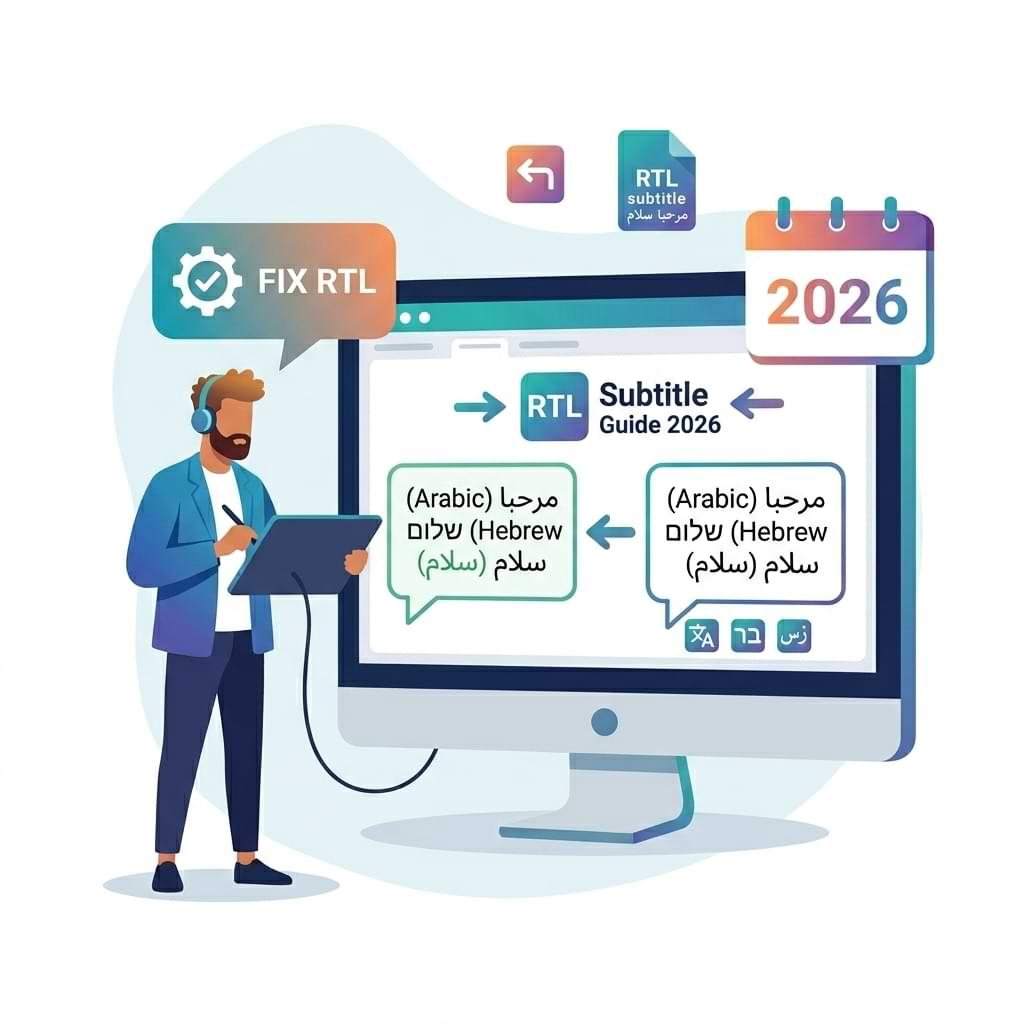
If you searched arabic rtl fix, arabic rtl fixer, or rtl fixer online, this guide is the why — the free Arabic RTL fix tool is the 30-second how.
Arabic, Hebrew, and Persian text is read right-to-left. Most subtitle files, players, and video editors were built for left-to-right languages. When those two assumptions collide, you get subtitles that appear reversed, have punctuation in the wrong place, or mix numbers and words in the wrong order.
This guide explains why it happens, what the Unicode-standard fix is, and how to apply it to any SRT or VTT file in about 30 seconds — free, in your browser. It also covers NLE-specific notes for Premiere Pro, DaVinci Resolve, Final Cut Pro, FFmpeg, and VLC — plus a Python script for developers.
Key Takeaways
- 400M+ Arabic speakers globally; 130M Arabic-speaking YouTube users — the fifth-largest language audience on YouTube (BeMultilingual, WorldStats)
- RTL subtitle glitches tank engagement by up to 80% — OpusClip 2025 analysis of video tools
- Captioned videos get 40% more views — but only when subtitles render correctly (Wistia, 2025)
- The problem: video editors assume LTR text; Arabic/Hebrew/Persian is RTL — without explicit hints, the Unicode bidi algorithm misorders text and punctuation
- The fix: wrap each cue with Unicode RLE (
U+202B) and PDF (U+202C) characters — a documented Unicode practice used in Netflix and Amazon subtitle localization pipelines - Free tool: RTL Subtitle Fixer at videodubbing.com — no sign-up, browser-based, nothing uploaded to server
- What it won’t fix: disconnected Arabic letters (a font/renderer issue, not a file issue)
Jump to
| Section | What you’ll find |
|---|---|
| Why RTL Subtitles Break | Bidi algorithm, common failure modes |
| The Solution: Unicode RTL Embedding | U+202B and U+202C explained |
| Fix RTL Subtitles Online | Step-by-step with the free tool |
| Fix with a Python Script | For developers and automation |
| NLE-Specific Notes | Premiere Pro, DaVinci, FCP, FFmpeg, VLC |
| VTT vs SRT for RTL | Format comparison |
| What This Fix Won’t Solve | Font, shaping, burn-in limits |
| Arabic Video Dubbing | Full localization option |
Why RTL Subtitles Break
The scale of the problem
Arabic, Hebrew, Persian (Farsi), and Urdu are the four most widely used right-to-left scripts online. Arabic alone has 400M+ native speakers across 25 countries and 130M Arabic-speaking YouTube users — larger than YouTube’s entire user base in Germany, France, and the UK combined (WorldStats 2026).
Internet penetration in the Arab world reached 70.2% in 2025, putting the region at 348 million internet users and narrowing the gap with the EU (419M) to just 71 million users — with a population that is 62.8% under age 35 (Orient Planet Research / Intelligent CIO). YouTube is the primary video platform in Egypt, Jordan, and Oman.
Despite this audience size, most English-language video tooling treats RTL languages as an afterthought — and the subtitle rendering breaks reflect it.
How the Unicode bidi algorithm works (and where it fails)
The Unicode standard defines a bidirectional (bidi) algorithm (Unicode Standard Annex #9) that determines how text is displayed when a string contains characters from languages with different reading directions — like Arabic mixed with English, or Hebrew mixed with numbers.
The algorithm has a default assumption: if no explicit direction is specified, it uses the direction of the first “strong” character (a letter, not punctuation or a number). In many video editors and players, the base direction at the application level is set to LTR — so the algorithm starts from that assumption.
The result: your Arabic subtitle مرحبا بالعالم might render as ملاعلاب ابحرم — words in the wrong order, or punctuation flying to the wrong end of the sentence.
Specific problems you’ll see
1. Reversed word order. The entire string appears with the first word on the right and the last on the left — correct for RTL reading, but only if the rendering environment knows it’s RTL. Without the hint, the text appears visually reversed.
2. Punctuation in the wrong place. Question marks, full stops, and commas are “neutral” bidi characters — the algorithm places them based on surrounding context. In an LTR environment, they attach to the wrong end of the sentence. An Arabic sentence ending with ؟ (Arabic question mark) may appear with the question mark on the left instead of the right.
3. Numbers mixed incorrectly. Numbers are read left-to-right in all scripts. In a sentence like هذا الفيديو حصل على 1,200 مشاهدة (“This video got 1,200 views”), without proper RTL embedding the number can appear in the wrong position relative to the surrounding Arabic words.
4. Mixed-script failure: Latin brand names inside Arabic. This is the most common failure in 2026 localization workflows. A sentence like استخدم تطبيق iPhone الجديد (“Use the new iPhone app”) embeds a Latin brand name inside Arabic text. Without bidi control characters, the Latin word’s LTR directionality can override the surrounding RTL context, breaking the entire sentence (ArtlangsTV, 2025).
| Problem | Cause | Visible result |
|---|---|---|
| Reversed word order | LTR base direction + no explicit RTL hint | First Arabic word appears on the far right |
| Wrong punctuation placement | Neutral characters follow surrounding LTR context | ؟ appears on left instead of right |
| Number displacement | Numbers have inherent LTR direction | Number floats left inside Arabic sentence |
| Latin brand break | Mixed bidi categories without isolation | Latin word detaches and re-anchors on wrong side |
The Solution: Unicode RTL Embedding
The standard fix for subtitle files is to wrap each cue’s text with two Unicode control characters:
- U+202B (RLE — Right-to-Left Embedding): placed immediately before the text, tells the bidi algorithm “treat what follows as RTL”
- U+202C (PDF — Pop Directional Format): placed immediately after the text, closes the embedding scope
So a cue that looks like this:
1
00:00:01,000 --> 00:00:03,500
مرحبا بالعالم
becomes:
1
00:00:01,000 --> 00:00:03,500
مرحبا بالعالم
The characters and are the RLE and PDF. They are invisible when rendered — they only affect how the bidi algorithm interprets the text direction. No timestamps or cue numbers are touched.
Why not just use direction: rtl in VTT?
WebVTT (.vtt) supports a CSS direction:rtl property via cue settings. If your player supports it, this is a cleaner solution than Unicode embedding because it is semantic rather than a workaround. However:
- Most desktop NLEs (Premiere Pro, DaVinci Resolve) ignore VTT cue CSS settings
- Many web players do not implement cue position/direction settings despite the spec
- Unicode embedding works in both SRT and VTT and is more universally supported
For maximum compatibility across editors, players, and export pipelines, Unicode RLE + PDF remains the most reliable method as of 2026.
How to Fix RTL Subtitles Online — Step by Step
The RTL Subtitle Fixer handles this automatically, in your browser, with no server upload:
Step 1. Go to videodubbing.com/tools/rtl-subtitle-fixer/
Step 2. Paste your SRT or VTT file into the text area, or click Choose file to upload it. Drag-and-drop also works.
Step 3. Check your options:
- Strip existing bidi marks first (recommended): removes any previously applied RLE/PDF/LRM/RLM characters so you don’t stack them
- Skip cues that look Latin-only (recommended): leaves English-only cues untouched — important for bilingual files with English stage directions or character names
Step 4. Click Apply RTL fix
Step 5. Review the Preview box — this shows the first fixed cue rendered in your browser. RTL text should now flow right-to-left.
Step 6. Click Download to save the fixed .srt or .vtt file (same format as your input)
Fix RTL Subtitles Programmatically (Python Script)
For developers, automation pipelines, or large subtitle batches, here is the standard Python approach using pysrt and the built-in unicodedata module:
import pysrt
from collections import Counter
import unicodedata as ud

def dominant_strong_direction(s):
    """Detect whether a string is predominantly RTL or LTR."""
    count = Counter([ud.bidirectional(c) for c in list(s)])
    rtl_count = count['R'] + count['AL'] + count['RLE'] + count['RLI']
    ltr_count = count['L'] + count['LRE'] + count['LRI']
    return "rtl" if rtl_count > ltr_count else "ltr"

subs = pysrt.open("input.srt")
for sub in subs:
    if dominant_strong_direction(sub.text) == "rtl":
        sub.text = "\u202b" + sub.text + "\u202c"

subs.save("output.srt", encoding="utf-8")
This script (based on the StackOverflow implementation):
- Detects RTL direction using Unicode character category counts
- Only wraps cues that are predominantly RTL — skips Latin-only cues in bilingual files
- Preserves all timestamps and cue structure
- Works with FFmpeg burn-in, resolving both reversed word order and punctuation placement
For a simpler approach that wraps all cues unconditionally (useful when the entire file is Arabic/Hebrew/Persian), see the NabiKAZ/RTL-subtitle GitHub repo.
NLE-Specific Notes
Adobe Premiere Pro
Premiere Pro has limited native RTL support. The Unicode embedding approach works for the Captions panel (SRT/VTT import via the dedicated caption track workflow). For Legacy Titles or Essential Graphics text layers, you need to type the Arabic text directly in those panels — Premiere does not correctly import RTL text into timeline text layers from external files.
Third-party plugins like ArabicText or ME & AE Text are the standard solution for fully shaped Arabic text in Premiere’s Essential Graphics panel.
Recommended workflow for Premiere + Arabic subtitles:
- Fix your SRT with the RTL Subtitle Fixer
- Import as a caption track: File → Import → Captions
- Do not use Essential Graphics or Legacy Titles for RTL languages
DaVinci Resolve
Resolve 18+ added improved native RTL support. To use it:
- Import your fixed SRT via Timeline → Import Subtitle
- In the Subtitle inspector, toggle Right to Left if you see the option (availability depends on your Resolve version)
- The Unicode embedding in the file helps in older Resolve versions without the native RTL control
For Resolve 17 and earlier, the Unicode RLE + PDF approach is the primary workaround. Pairing it with a Unicode-aware Arabic font in the Subtitle inspector settings (e.g., Noto Naskh Arabic or Amiri) produces the best results.
Final Cut Pro
FCP handles Unicode bidi reasonably well. Import the fixed SRT file via the Captions workflow (use the Captions extension or File → Import → Captions). If you see alignment issues in the viewer — text anchored to the left instead of the right — check the caption lane display before rendering, as FCP sometimes requires an RTL-capable font to be set in the caption style.
FFmpeg (Burn-in)
-vf subtitles filter defaults to the simple libass/fribidi shaper, which does not auto-detect RTL direction (GitHub: libass/libass #682). This causes reversed Arabic and Hebrew text even with fonts that support the script.Two solutions for FFmpeg Arabic subtitles:
Option 1 (recommended) — Pre-process the SRT file: Run the SRT through the RTL Subtitle Fixer or the Python script above before passing it to FFmpeg. The Unicode RLE/PDF markers in the file tell even the simple fribidi shaper to handle the text correctly.
ffmpeg -i input.mp4 -vf "subtitles=fixed_arabic.srt:force_style='FontName=Noto Naskh Arabic,Fontsize=28'" output.mp4
Option 2 — Use the complex shaper:
If using an ASS/SSA file, enable the HarfBuzz complex shaper in ffmpeg builds that support it (shaping=complex). The complex shaper (HarfBuzz) handles Arabic glyph joining correctly and bypasses fribidi’s limitations (GitHub: jellyfin-ffmpeg #217). This option requires a custom ffmpeg build or Jellyfin’s patched version.
Always pair FFmpeg Arabic subtitle rendering with an Arabic-capable font:
ffmpeg -i input.mp4 -vf "subtitles=fixed.srt:force_style='FontName=Noto Naskh Arabic,Fontsize=30,PrimaryColour=&Hffffff&'" output.mp4
VLC Player
VLC generally renders Arabic and Hebrew subtitles correctly with a Unicode-aware font. If text still looks wrong:
- Go to Tools → Preferences → Subtitles/OSD
- Set the font to a full Unicode Arabic font: Noto Sans Arabic, Noto Naskh Arabic, or Amiri
- Restart VLC
VLC applies its own bidi detection based on Unicode character categories, so the RTL embedding markers in the SRT file improve but do not guarantee correct display — font selection matters equally here.
mpv Player
mpv uses libass for subtitle rendering. RTL detection is not enabled by default for compatibility reasons (GitHub: mpv-player/mpv #12978). Use the --sub-detect-rtl flag to enable automatic RTL detection, or add Unicode RLE/PDF to your SRT file before playback:
mpv video.mp4 --sub-file=arabic_subtitles.srt --sub-detect-rtl
VTT vs SRT: Which Format Handles RTL Better?
| Feature | SRT | VTT |
|---|---|---|
| Native RTL attribute | None | direction:rtl cue setting |
| NLE support | Universal | Varies |
| Unicode bidi markers | Work reliably | Work reliably |
| Web player CSS direction | Not applicable | Supported (where implemented) |
| Best for NLE import | Yes | Sometimes |
| Best for web/HTML5 player | Either | VTT with direction:rtl preferred |
direction:rtl cue settings for HTML5 web players where you control the player configuration. The RTL Subtitle Fixer supports both formats.What This Fix Won’t Solve
Disconnected letters — broken Arabic shaping. Arabic letters change shape depending on their position in a word and surrounding characters. This “shaping” is handled by the font and text rendering engine — not the subtitle file. If you see isolated letters instead of joined ligatures (e.g., م ر ح ب ا instead of مرحبا), the problem is your font or renderer, not the SRT file.
- Solution: Use an Arabic-capable font (Noto Naskh Arabic, Amiri, or Adobe Arabic) in a player or editor that supports Arabic text shaping. In FFmpeg, the complex shaper (HarfBuzz) handles ligatures.
Wrong translation. The RTL Fixer only handles character direction. Content errors in the translation require editing the text in the SRT Editor.
Burn-in subtitles. If the Arabic text was already rendered into the video as pixels, no subtitle file tool can fix it. You need to re-export from the original project with a corrected Arabic text layer, correct font, and proper shaping.
Missing vowel marks (harakat/tashkeel). Unicode embedding does not add or restore Arabic diacritical marks. If your source text lacks harakat, the output will also lack them. This is a translation/transcription quality issue.
| Problem | Cause | Fix |
|---|---|---|
| Reversed word order | No RTL embedding in file | RTL Subtitle Fixer (this guide) |
| Punctuation on wrong side | Neutral bidi chars default to LTR | RTL Subtitle Fixer |
| Disconnected Arabic letters | Font lacks Arabic shaping support | Use Noto Naskh Arabic / Amiri + RTL-capable renderer |
| Wrong translation | Human or AI translation error | SRT Editor |
| Burn-in subtitles | Text rendered as pixels | Re-export from original project |
| Missing harakat | Not in source text | Transcription/translation fix |
Professional Arabic & Hebrew Video Dubbing
If you need fully localized Arabic content — not just fixed subtitles but professional AI dubbing with native Arabic voices and RTL-aware workflows — Arabic Video Dubbing at videodubbing.com handles the full pipeline: transcription, translation with RTL review, voice synthesis, human QA, and export for YouTube multi-language audio tracks.
With 348 million internet users in the Arab world (Orient Planet Research) — a market nearly as large as the EU’s entire internet population — Arabic localization is increasingly a growth priority, not just a nice-to-have.
Ready to reach 130M+ Arabic YouTube viewers?


Use the share button below if you liked it.