
We’ve all experienced it, even if we didn’t have a name for it. The camera cuts to a gripping new angle, but the subtitle from the previous shot is still lingering on screen.
Your eyes drop to the text, but the visual context has already moved on. It’s a tiny mismatch that causes outsized annoyance. In professional audiovisual translation (AVT), sloppy timing at edits reads as a rush job. The fix is a technique called snap-to-cut: timing your subtitles so they respect frame boundaries at shot changes, not just the audio waveform.
This guide explains why crossing the cut hurts readability, what premium streaming platforms demand, and how to apply snap-to-cut in your daily workflow.
Key Takeaways
- Sync to the edit, not just the audio: Netflix and other premium specs treat timing-to-picture as a first-class requirement.
- The “Half-Second” Rule: 12 frames (at 24 fps) is the standard window for bumping in/out times to the cut, while maintaining a minimum 2-frame gap between subtitle events.
- The Golden Exception: Crossing the cut is only allowed when the dialogue itself crosses the cut. Otherwise, sync out-times to the shot change and edit your text to fix reading speeds.
- Work smarter: Snap-to-cut is significantly faster when using shot-change detection software and frame-based spotting tools.
Jump to
| Section | What you’ll find |
|---|---|
| Why crossing the cut hurts | Attention span, edit rhythm, and cognitive load |
| What the data says | Eye-tracking and reading comprehension |
| Platform rules | Netflix Timed Text principles |
| Snap-to-cut in practice | The Clean Break vs. The Dialogue Bridge |
| Visual guide | Incorrect vs. snapped placement |
| Frame math | 12 frames, 2-frame gaps, and frame rates |
| Tools | Enterprise, OSS, and free web sync |
| Free subtitle sync | videodubbing.com—your first pass |
| Summary | Your pre-export checklist |
Why crossing the shot change hurts viewers
Each camera cut is a promise to the viewer: new information, new emphasis, or a new emotional beat.
Subtitles sit in the lower third of the screen, constantly competing for attention with faces, motion, and scene geography. When a line of text stays on screen across a cut while the speech has already ended, viewers are forced to reconcile stale text with fresh imagery.
That visual friction is a small tax on every edit. Over a feature-length film, it adds up to viewer fatigue, missed visual details, and a general sense that the captions are “clunky.”
Professional specs don’t treat this as a stylistic preference—it’s a technical mandate. Netflix’s Subtitle Timing Guidelines dictate that subtitles must sit neatly within shots to support an effortless viewing experience.
What research says about subtitles and cognitive load
Eye-tracking studies consistently prove that subtitle timing directly impacts how hard a viewer’s brain has to work:
- Format dictates comprehension: Research on subtitle format shows that presentation choices measurably affect cognitive load. Professional workflows aim to minimize this effort so attention stays on the story (Innovation in Language Learning and Teaching, 2024).
- Reading moving text is demanding: Work on dynamic audiovisual text underscores that avoidable timing errors drastically increase the mental effort required to watch a video (ACM, 2013).
- Accessibility and engagement: A recent study on subtitles with the sound off found that proper timing and segmentation are crucial for immersion and gaze patterns (PLOS ONE, 2024).
Keep in mind: Snap-to-cut does not replace strict reading-speed (CPS) limits. It simply aligns text turnover with the editorial rhythm. (Struggling with text length? Check out our guide on word swell and CPS limits).
What Netflix and pro workflows expect
If you want to work with premium platforms, you have to play by their rules. Here is a practical breakdown of Netflix’s public Timed Text Style Guide:
| Rule | Practical Application |
|---|---|
| Shot Fit | Subtitles should sit neatly within the boundaries of a single shot whenever possible. |
| The Cut Conflict | If an out-time naturally falls just over a cut, pull it back. Sync the out-time to the shot change so the text disappears exactly when the image changes. |
| The Half-Second Rule | If an out-time is within half a second of a cut, extend the text to the cut, making sure to leave a two-frame gap before the next shot begins. |
| The Exception | Subtitles may cross shot changes only when the dialogue itself spans across the cut. |
| Frame Rates | These rules are based on 24 fps (half a second = 12 frames). If you are working at 30 fps, scale accordingly (half a second = 15 frames). The minimum gap between subtitles is always 2 frames, regardless of frame rate. |
How to apply snap-to-cut
Snap-to-cut means placing your in-times and out-times exactly on frame boundaries at edits. Here are the three scenarios you will face:
1. The Clean Break (The Default)
When a subtitle belongs entirely to the action in Shot A, the out-time must end on the last frame of Shot A (minus your 2-frame gap). The subsequent subtitle starts on the very first frame of Shot B. The viewer’s text and image channels refresh simultaneously.
2. The Dialogue Bridge (The Exception)
When a speaker in Shot A continues their sentence as the camera cuts to Shot B, the subtitle should bridge the cut. However, you must still apply judgment. If the text lands heavily on the new image, snapping the subtitle boundary to the first frame of the new shot often reads more naturally than leaving half a sentence stuck on the old visual.
3. When Rules Collide
If snapping to a cut forces your text to exceed Characters Per Second (CPS) limits, you have to get creative. You must shorten the copy, split the segments, or borrow time from adjacent subtitles. Translation teams should pair snap-to-cut with syntactic compression to keep things readable.
Visual guide: shot-change error vs. snap-to-cut
The diagram below highlights the difference between a jarring shot-change violation and a clean snap-to-cut.
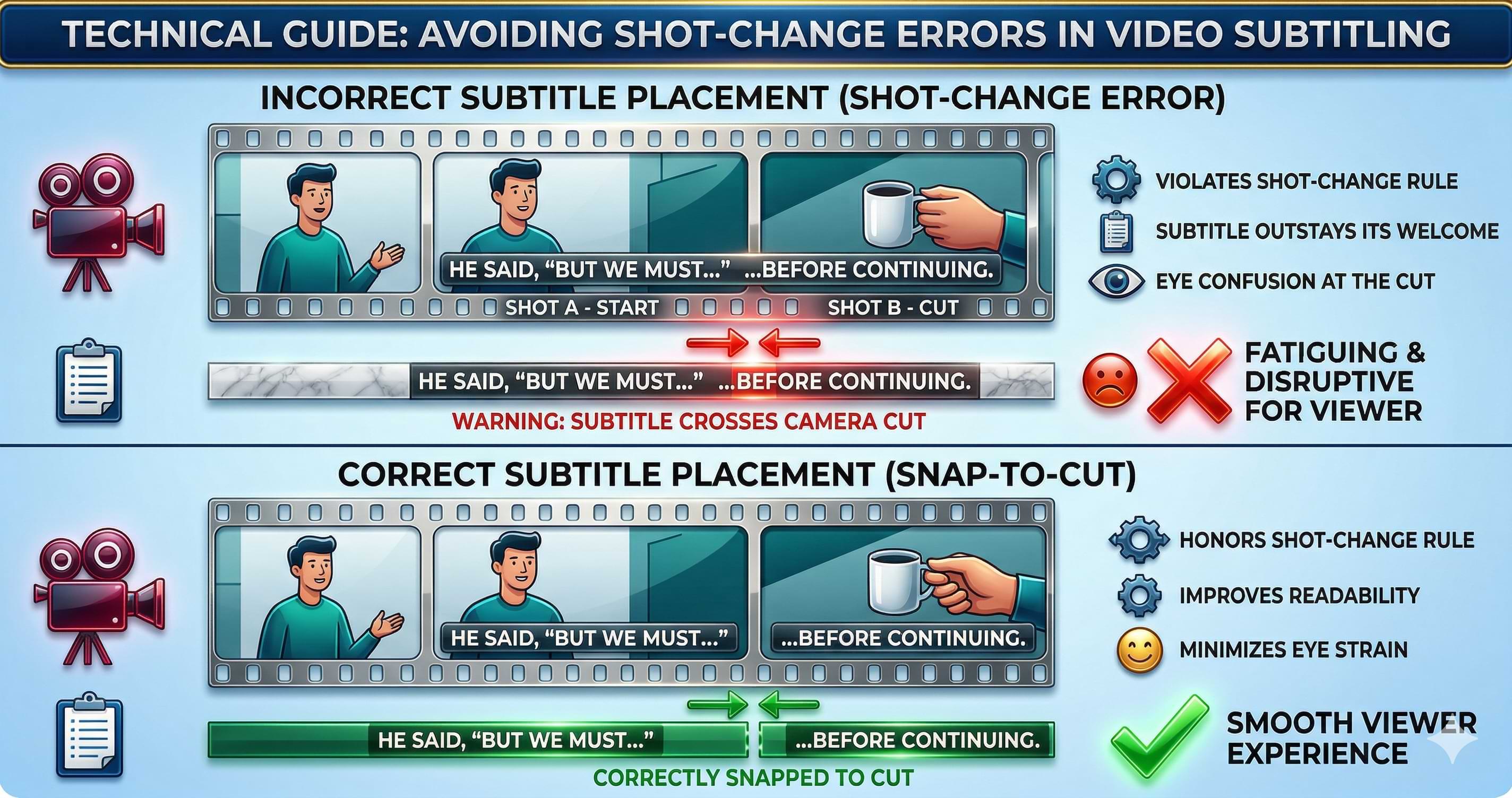
Snap-to-cut — When dialogue does not cross the cut, keep each subtitle within its shot. Split or re-time so the boundary snaps to the exact frame of the cut.
Frame math at 24 fps and beyond
Working with video means doing a little math. Here is your cheat sheet:
| Concept | At 24 fps | Notes |
|---|---|---|
| Half a second | 12 frames | The Netflix baseline window for bumping in/out times to a shot. |
| Min. duration | 20 frames (~0.83 s) | Never park a subtitle (even a one-word cue) for less time than this. |
| Subtitle gaps | 2 frames | The universal minimum gap. Gaps of 3–11 frames should generally be closed to 2, or widened to ≥ 12. |
| 30 / 60 fps | Scale up | Half a second becomes 15 or 30 frames, respectively. |
Always spot in your final delivery frame rate, and always QC in a player that allows frame-by-frame stepping.
Tools for shot-change-aware subtitling
You can write subtitles in a basic text editor, but you cannot execute snap-to-cut blindly. You need software that provides a waveform, frame-accurate video playback, and shot metadata.
| Tool Class | Examples | Why Pros Use Them |
|---|---|---|
| Enterprise | EZTitles, OOONA, WinCAPS | Built-in automated shot-change detection, strict QC compliance checks, and broadcast templates. |
| Free / OSS | Aegisub | Excellent waveform and frame-stepping. Freelancers often pair it with manual cut lists. |
| Pre-Processing Sync | videodubbing.com | A free web tool to automatically align your raw subtitles to the video before you start manual frame-snapping. |
Free subtitle sync (videodubbing.com)
Snap-to-cut work relies on a critical assumption: your cues are already perfectly synced to the speech. Loose translation exports or re-encoded master files often introduce “timing drift.”
Before you spend hours manually snapping cues to cuts in EZTitles or Aegisub, use the Free Subtitle Sync tool at videodubbing.com. Simply upload your video and subtitle file to automatically re-align the cues to the audio. It’s the perfect, zero-cost first pass for a pristine workflow.
For a wider look at the software landscape, check out our Ultimate Guide to YouTube Video Translation and Subtitling Tools.
Align subtitles with your audio—then snap to cuts in your editor.
Summary
Snap-to-cut is the technical discipline of aligning subtitle boundaries with shot changes. It honors the core philosophy of premium subtitling: text should track with both the audio and the picture.
Apply the half-second and two-frame rules strictly, re-segment your translations when reading speed breaks, and validate your work in a frame-accurate player. If your raw file is out of sync right out of the gate, run it through videodubbing.com to re-align your cues before you start snapping.
When done well, timing disappears and the viewer stays fully immersed in the story. When ignored, your captions will fight the edit on every single cut.
References
- Netflix Partner Help: Timed Text Style Guide
- Innovation in Language Learning: Subtitle format & cognitive load
- ACM: Measuring the impact of subtitles on cognitive load
- PLOS ONE: Subtitles, sound off, cognitive load (2024)
- EBU: Tech overview — EBU-TT and subtitling
- EZTitles documentation: Shot change detection
Further reading
- Free subtitle sync (videodubbing.com) — Upload video and subtitles; align timing at no cost
- Text Expansion in Subtitles: Fix CPS and Character Limits
- Ultimate Guide to YouTube Video Translation and Subtitling Tools
- Translation and Localization for Better Video Discoverability


Use the share button below if you liked it.