Create and name speakers
Add as many speakers as your video has. Each gets a unique name, color, and avatar used across the timeline, editor, and preview — so characters are always easy to distinguish.
Manage every speaker in one panel — assign AI voices, set age character, add an avatar, and control tone from a speaker-wide default style down to individual lines. Built for multi-character videos and editorial teams who need precise per-speaker voice control.
Identify each voice in your video as a named speaker. Color-code them on the timeline, track their segment count and speaking time, and assign an AI voice to each one independently.
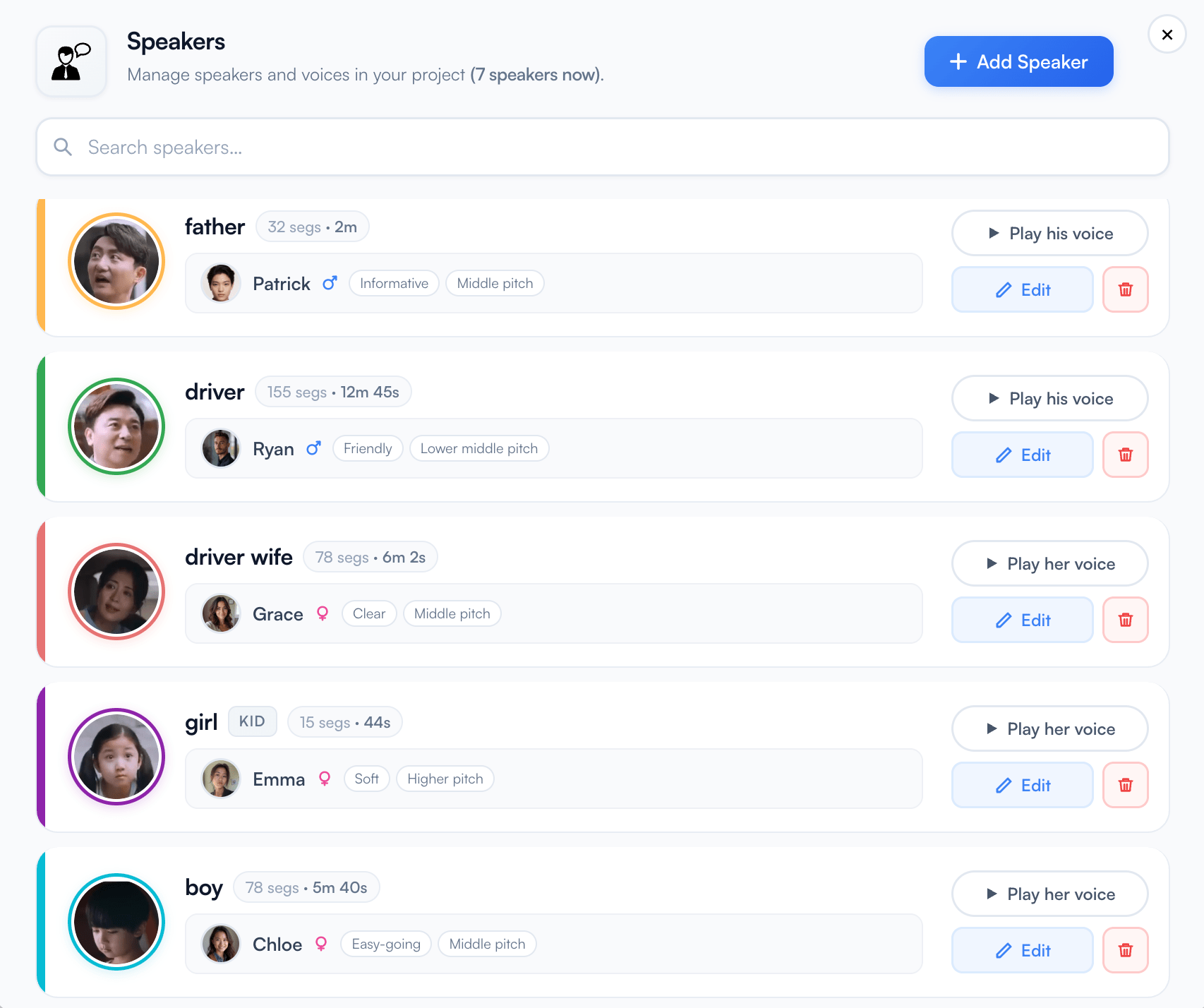
Add as many speakers as your video has. Each gets a unique name, color, and avatar used across the timeline, editor, and preview — so characters are always easy to distinguish.
Each speaker card shows segment count and total speaking time, so you can spot imbalances and prioritize voice assignments quickly without counting manually.
Find any speaker instantly in large multi-character projects with a search bar that filters the speaker list by name in real time.
Removing a speaker who has lines prompts you to reassign those segments to another speaker first — no lines are lost or left with a missing voice.
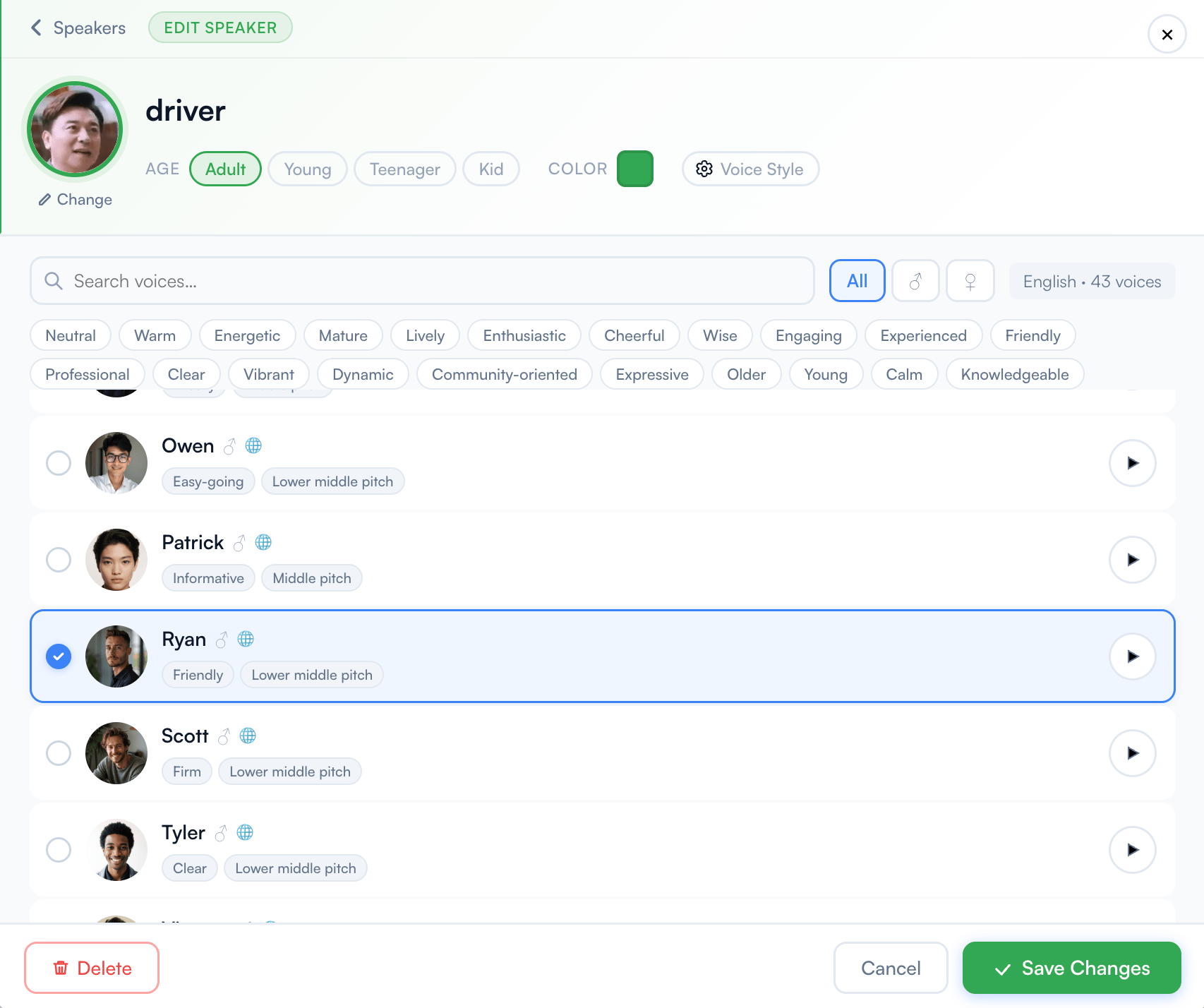
Filter the voice catalog by gender, personality tags, and your project's target language. Listen to a sample before assigning — so you hear exactly how the voice will sound in your dub before committing.
Narrow the catalog by male or female voice, then filter by personality — Warm, Energetic, Professional, Calm, Mature, Cheerful, Expressive, and more — to find the right fit for each character.
The catalog highlights voices that support your project's target language, so you always know which ones will work for your dub without extra filtering steps.
Play a sample directly in the voice picker. Age-specific samples play when they exist — so previewing a Young or Teenager voice actually reflects that age character.
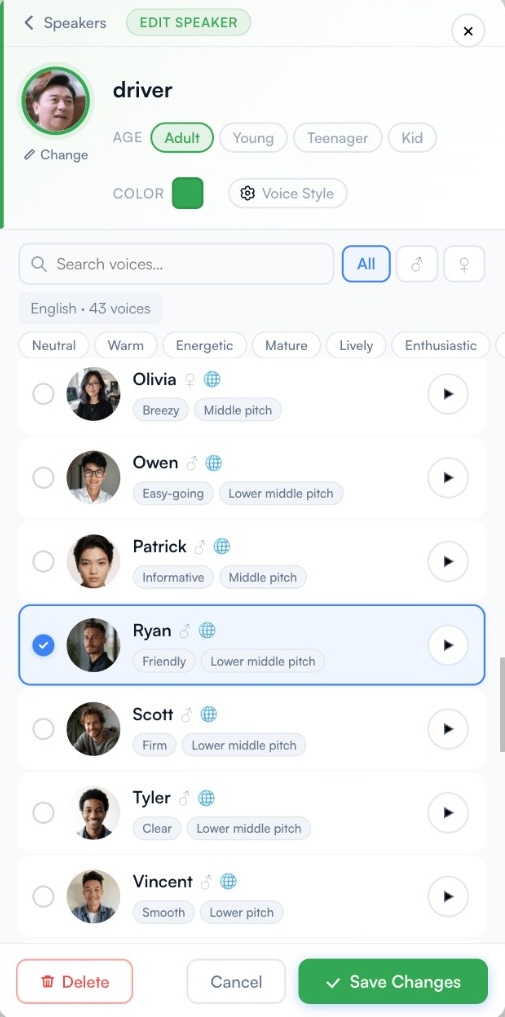
Set an age character per speaker to get age-appropriate voice previews and AI dubbing output. Useful for animation, educational content, or any video with characters of different ages.
The default character — mature voice with full range of personality styles. Covers most narration, interview, and dialogue use cases.
A younger-sounding variant of the assigned voice. Previews and generated audio reflect a young adult or older teen character where a variant is available.
Voices the speaker as a teenage character. Age-specific samples play in the catalog so you hear the difference before assigning.
For child characters in animation, educational content, or children's media. Keeps voice identity consistent with the chosen catalog voice.
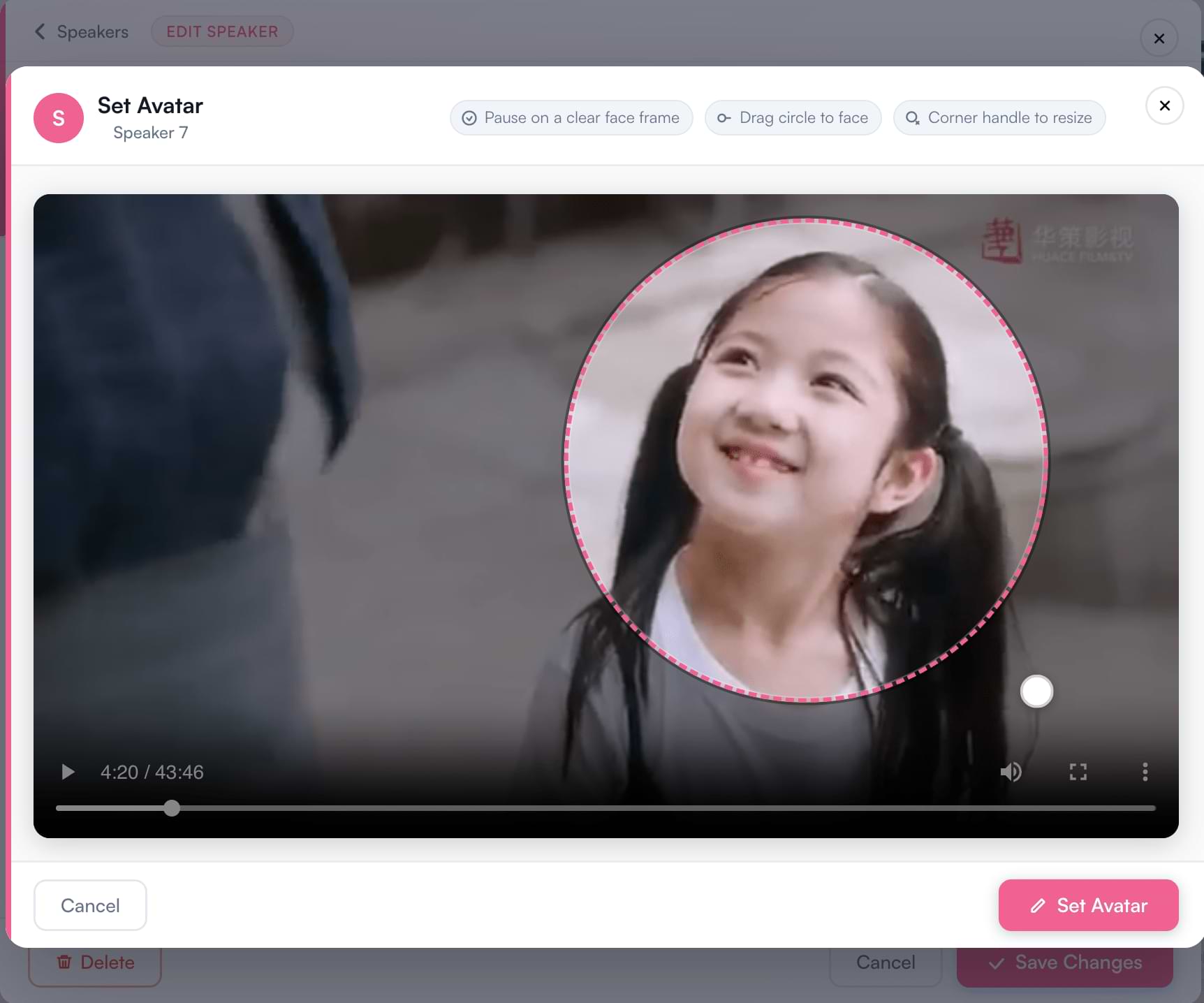
Put a face to every voice. Crop an avatar directly from your video or upload a photo — it appears on speaker cards, the subtitle timeline, and the inline speaker dropdown while editing, so multi-character projects stay readable at a glance.
Scrub to a clear face frame, drag a circle over the face, and resize to fit. The editor opens at the speaker's first segment so you land near the right frame immediately.
For audio-only projects or when a clean video frame is not available, upload a JPEG, PNG, or WebP photo and crop it with the same circle tool.
No custom avatar set? The speaker automatically shows their assigned voice's catalog image, or a colored initial letter — so the timeline is always readable without manual setup.
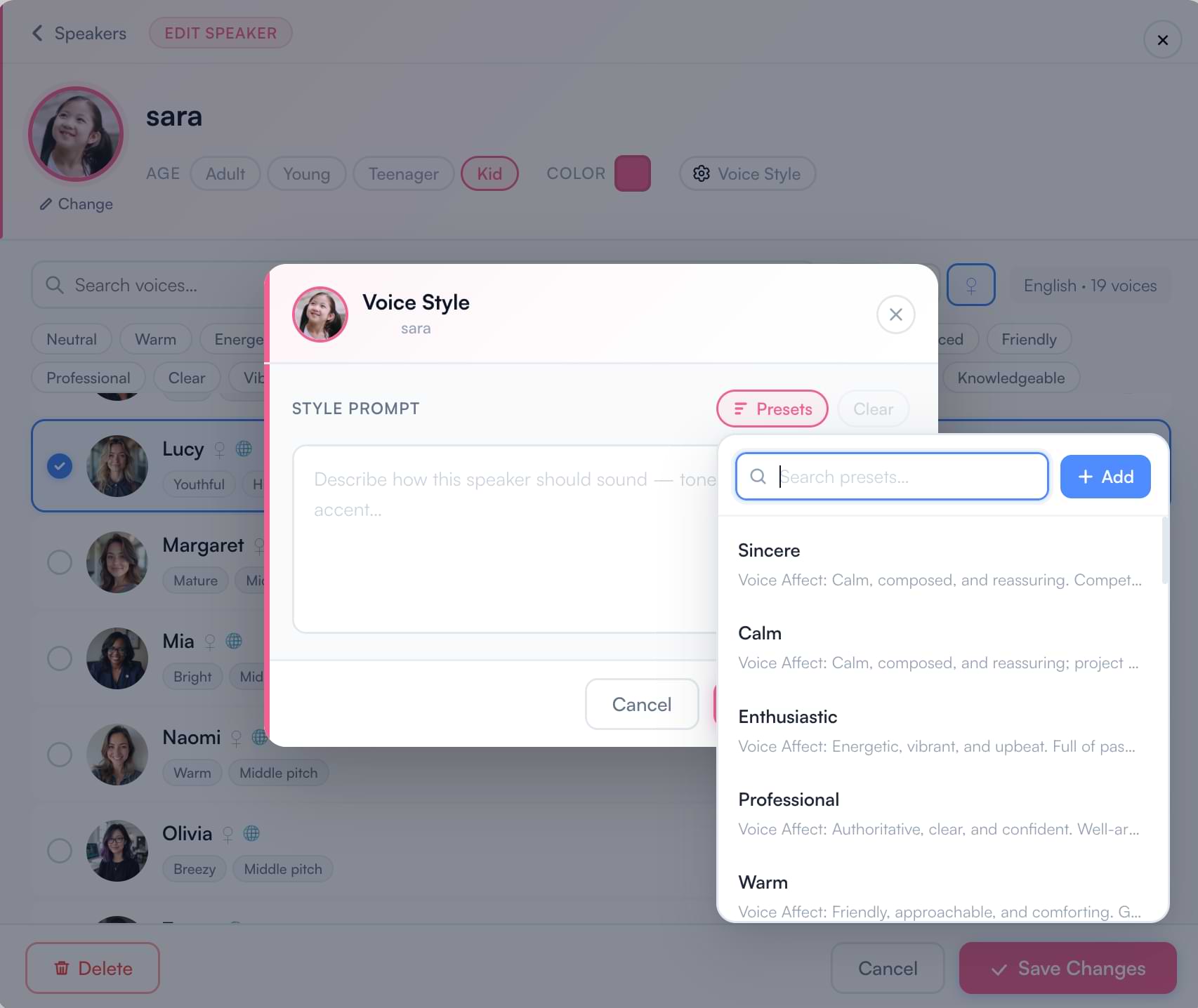
Define a default performance for each speaker. Choose a built-in preset or write your own prompt describing tone, pace, accent, and emotion. The style applies to all of that speaker's lines unless overridden on a specific segment.
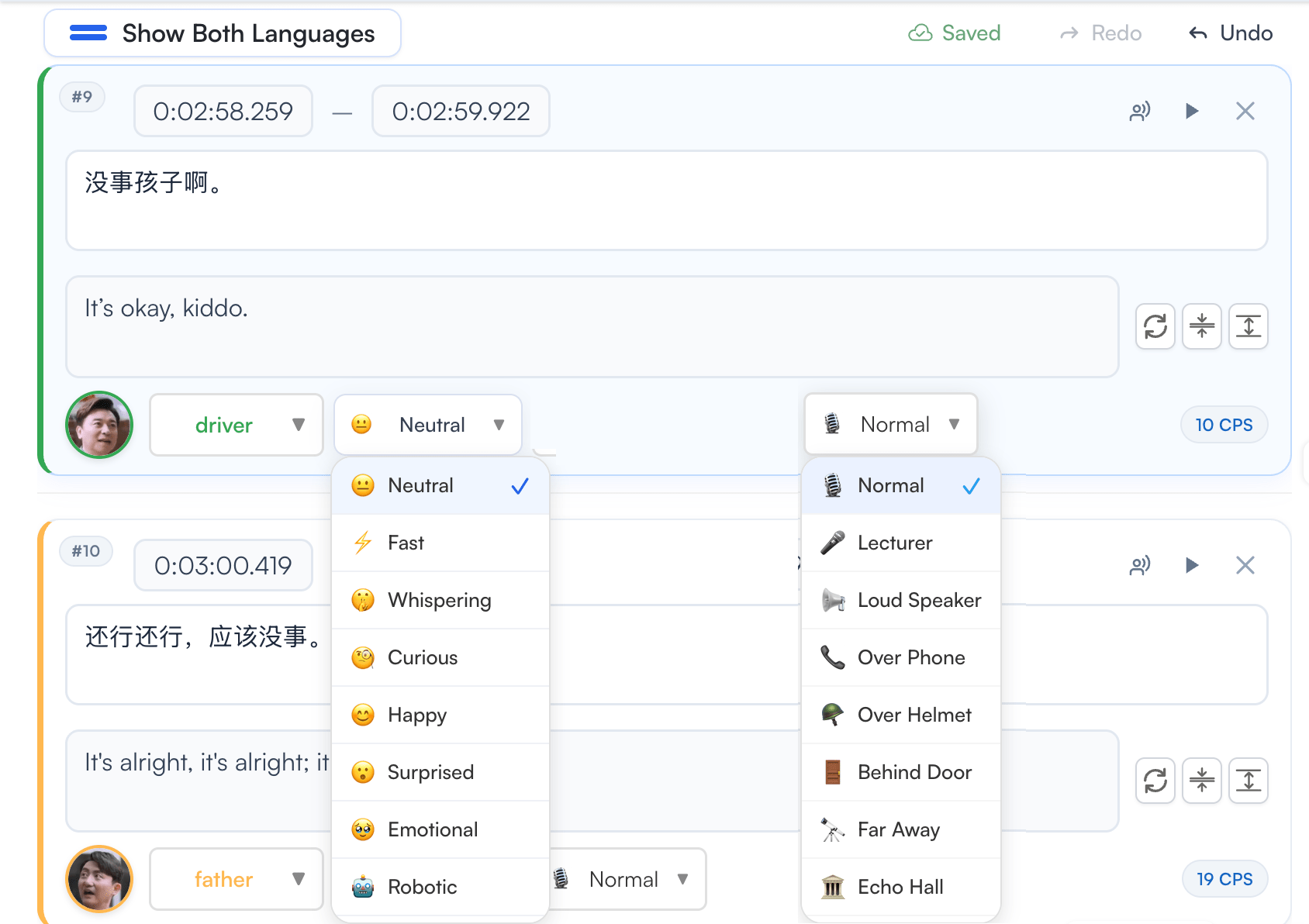
Override the speaker's default style on any individual line. Or apply the same expression to every line a speaker delivers — with one click.
Set emotional delivery on any line: Happy, Whispering, Curious, Emotional, Stressed, Sarcasm, Shouting, Scared, Calm, Angry, Excited, Sad, and more.
Apply scene acoustics per line: Over Phone, Echo Hall, Walkie Talkie, Underwater, Robot, Lo-Fi, Megaphone, AM Radio, Cave, Intercom, and more.
Set an expression or effect on every line for one speaker in a single step — other speakers are not affected. Ideal for consistent characters across long projects.
Per-line expression stacks on top of the speaker's Voice Style — so a narrator set to Professional can still have individual Excited or Whispering lines.
The platform guides you at each step — from assigning voices before generation to previewing exactly what you are getting before committing.
If you generate voiceover for a speaker without an assigned voice, the platform prompts you to set one first — so nothing generates with a missing or placeholder voice.
When you create a new speaker while editing a subtitle, the editor asks whether to assign them to the line you were on — so new characters are wired up without extra steps.
Hear a catalog sample before assigning a voice, the original video audio from a speaker's first segment before generating, or the actual AI-generated output after generation — all from the speaker card.
Start for free → · Video dubbing workflow · Subtitle editor · Enterprise